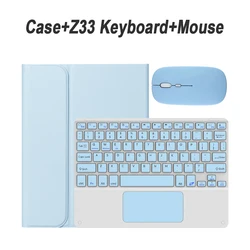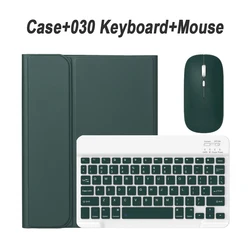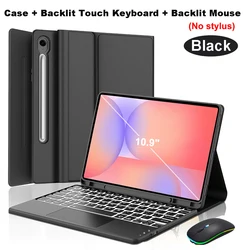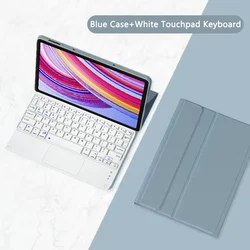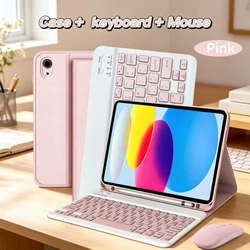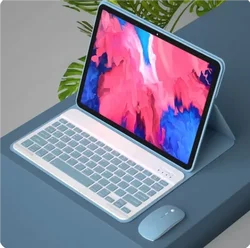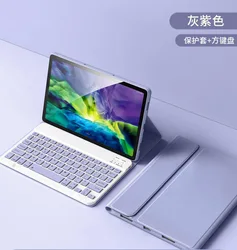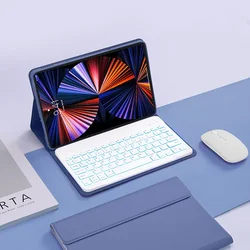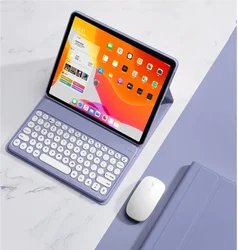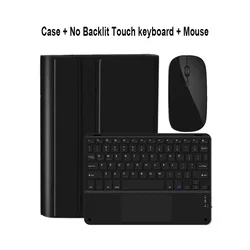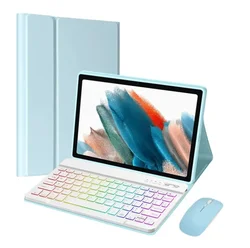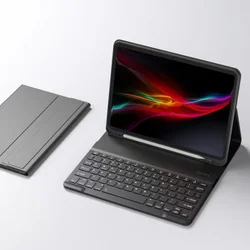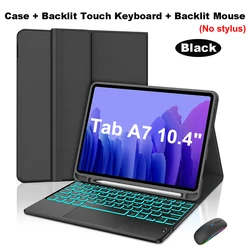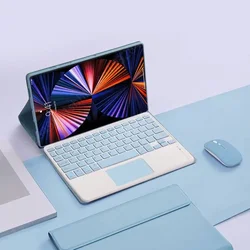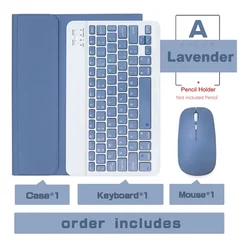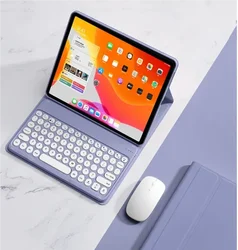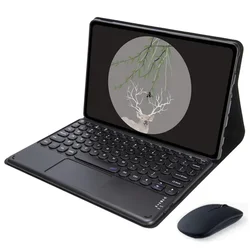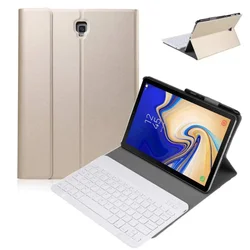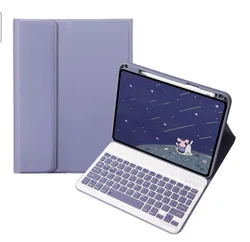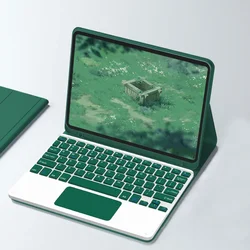
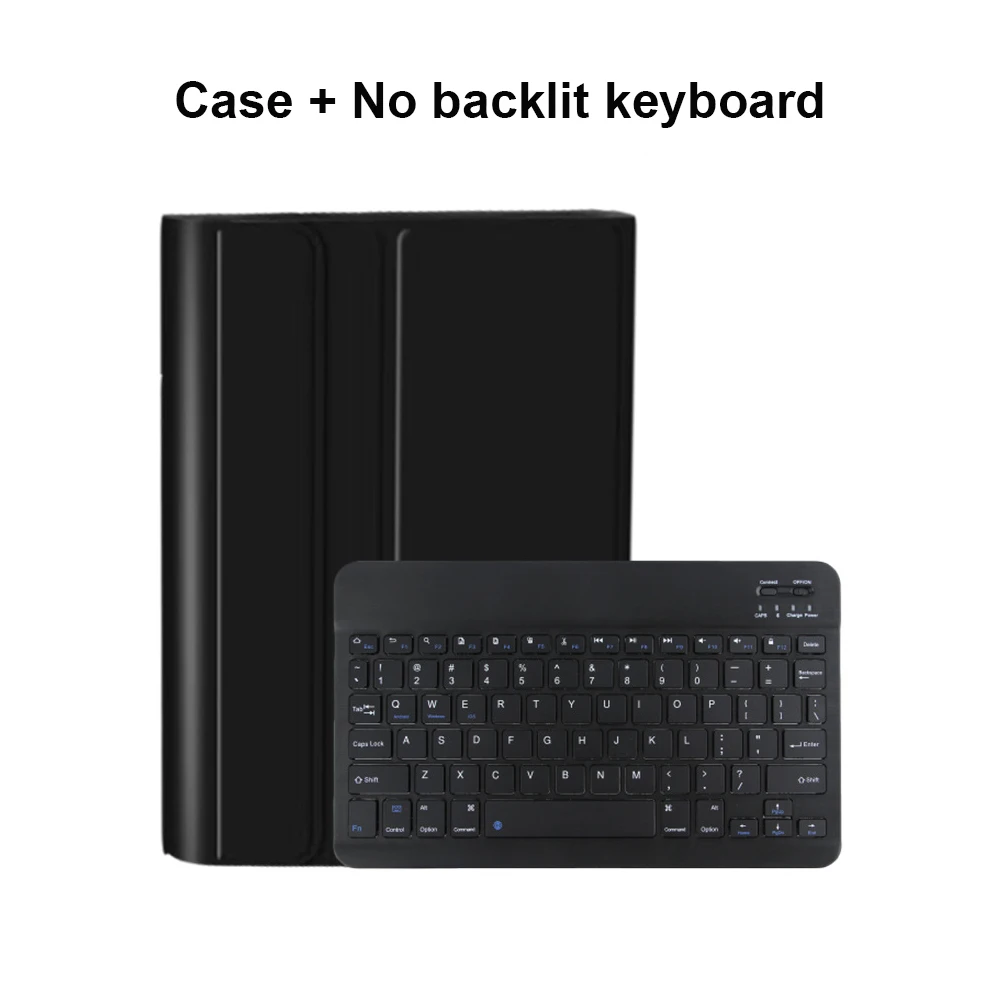

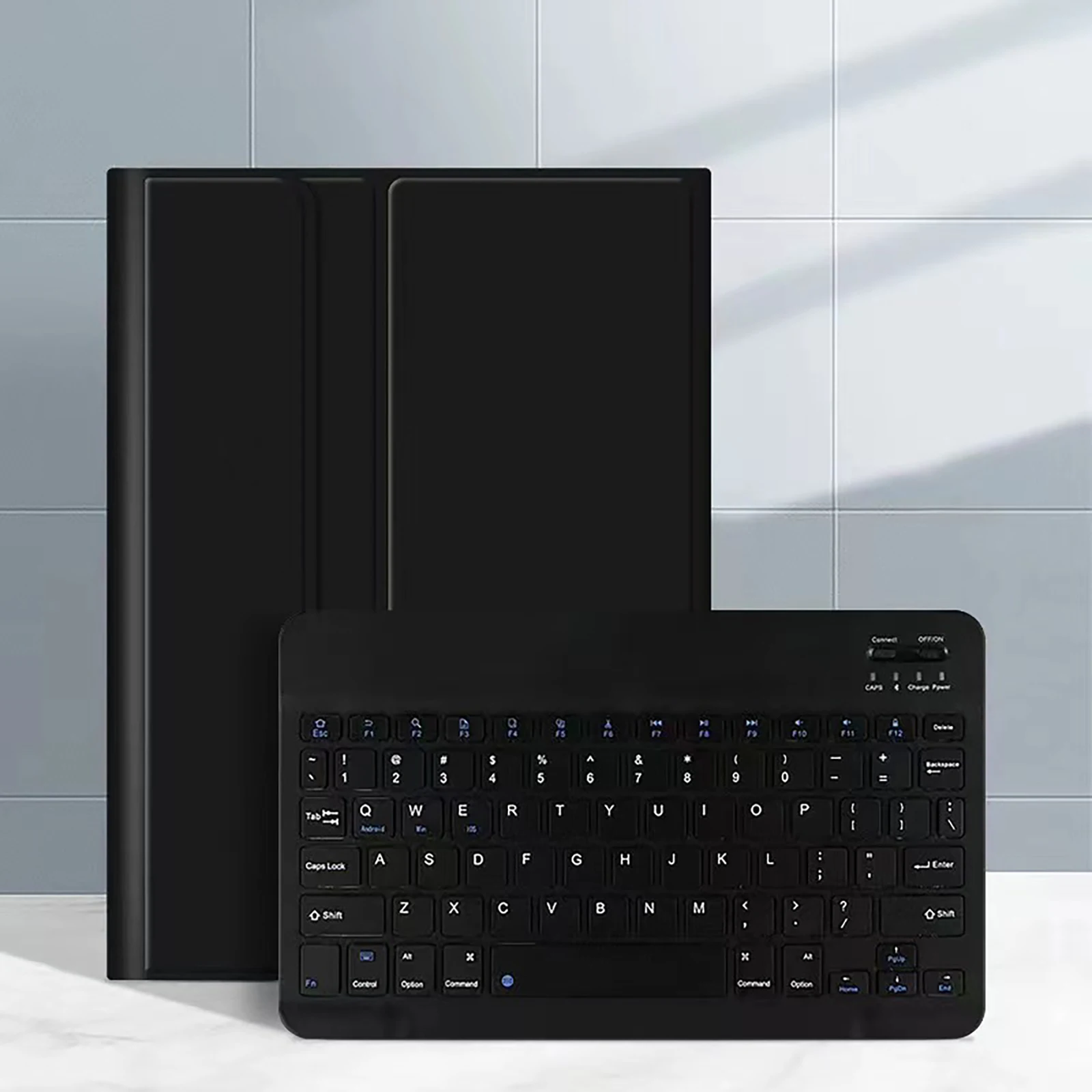

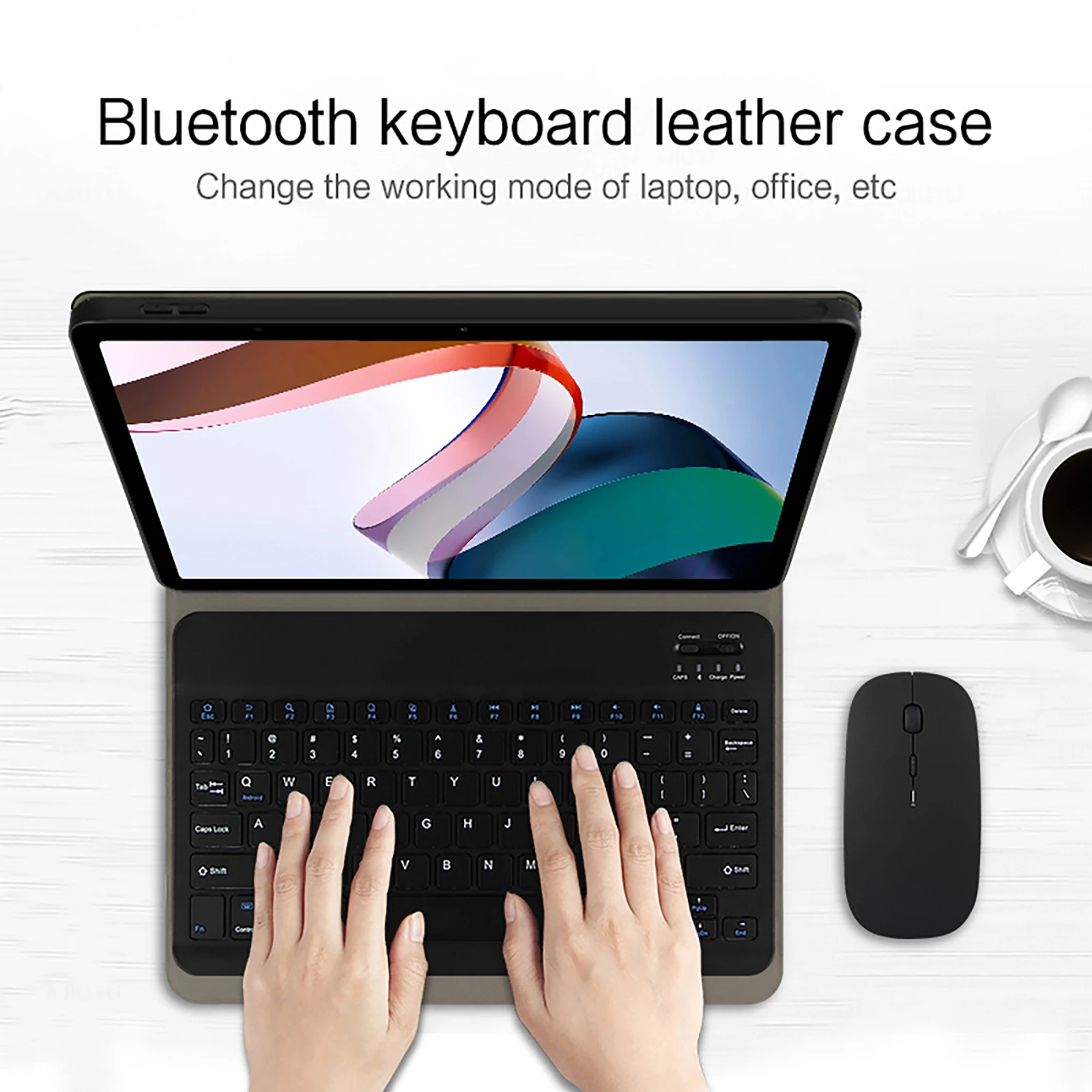
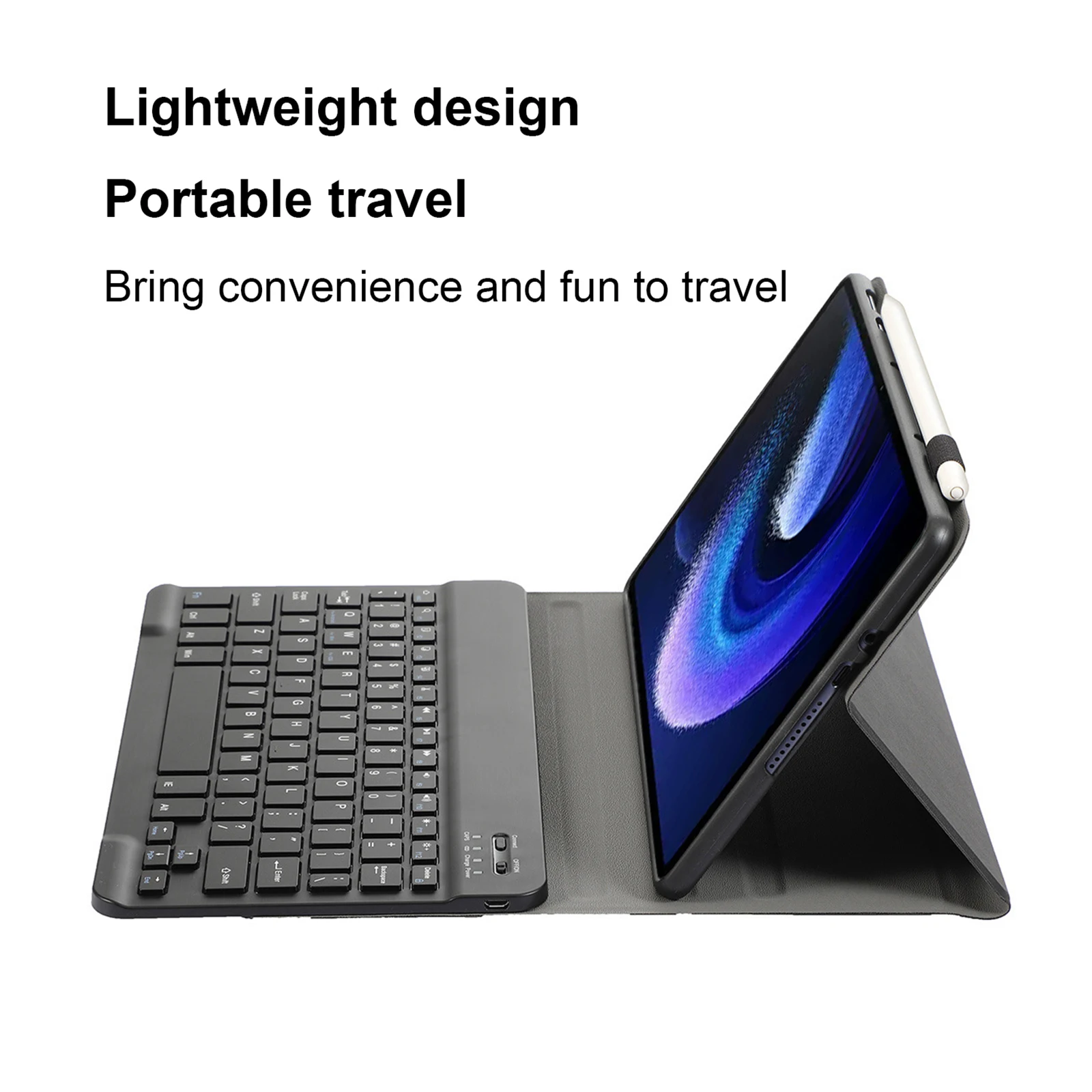
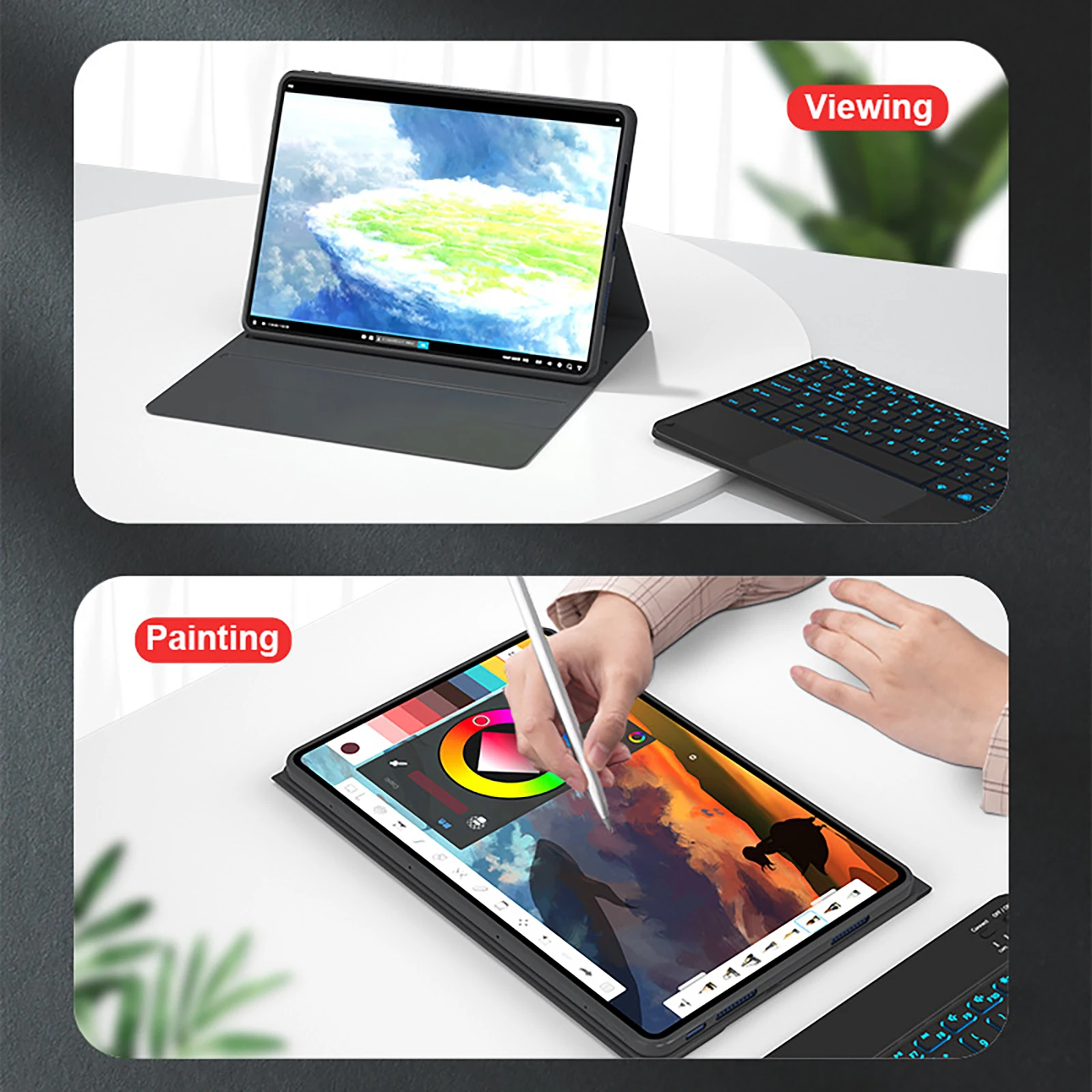
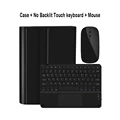
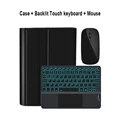
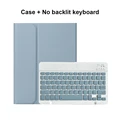
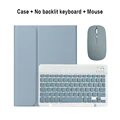
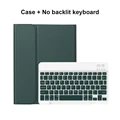
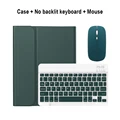
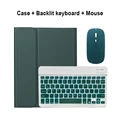
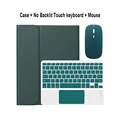
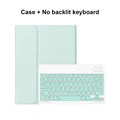
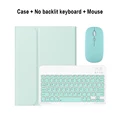
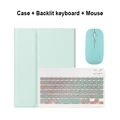
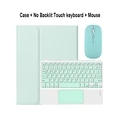
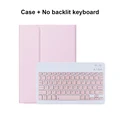
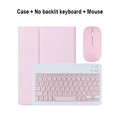
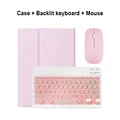
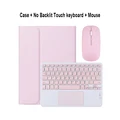
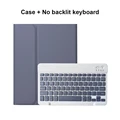
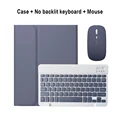
For Xiaomi Mi Pad 6 11 Inch Case, Keyboard Cover for Xiaomi Mi Pad 6 Pro 11 Inch
Please confirm your machine model before purchasing.
Keyboard Options
🔧 English Keyboard: Features only English letters.
🔁 Multilingual Version Keyboard: Includes both English letters and additional engraved language letters.
⚡ Important Note:
📦 The digital tablet and stylus are not included in the package. Product images are for reference only; please refer to the actual product for color and details.
Connecting Your Keyboard and Mouse
Step 1: Connect the mouse first, then the keyboard.
Mouse Connection:
🔵 1. Toggle the switch to the Bluetooth icon.
🔵 2. Find "Mouse" in your device's Bluetooth list and connect.
Normal Keyboard Connection:
🔘 1. Switch the button in the upper right corner to "ON".
🔵 2. Press "Connect" and find "Keyboard" in the Bluetooth list.
Touchpad Keyboard Connection:
1. Turn on the keyboard.
2. Press Fn + C.
🔵 3. Find "Keyboard" in the Bluetooth list and connect.
Frequently Asked Questions (FAQ)
Q: What should I pay attention to when connecting the mouse for the first time?
🔘 A: Press the left button, right button, and scroll wheel simultaneously for about 3-5 seconds.
🔵 Q: Is the scroll direction the same for USB and Bluetooth connections?
🔵 A: No, the scroll direction differs. USB direction matches that of a computer mouse, while Bluetooth direction is the opposite.
Q: How do I switch between different systems?
A: Use the following keyboard shortcuts:
Fn + Q = Android
Fn + W = Windows
Fn + E = iOS
Ensure to switch the system before connecting the tablet.
🔵 Q: The Bluetooth keyboard letters are messy. What should I do?
A: Follow these steps:
🧰 a. Ensure the keyboard language is set to English.
🔵 b. Disconnect the keyboard's Bluetooth, ignore the connected device, then reconnect the Bluetooth. Select the system using Fn + E (iOS system).
Note: Fn + Q = Android, Fn + W = Windows, Fn + E = iOS
🔘 c. Press the L, S, Z buttons simultaneously to reset the keyboard.
Q: How do I configure the input method for different language keyboards?
A: For example, on a Samsung tablet:
🧰 1. Open "Settings."
2. Go to "System" and then "Language & input."
3. Select "Add New Keyboard."
🧰 For other systems, follow the system settings prompts.
Q: How do you change the scroll wheel sliding direction on the device?
A: Connect the mouse, open "General," then "Trackpad & Mouse," and toggle off "Natural Scrolling."
Om den här artikeln anländer efter leveransdatumet som anges i kassan kommer du att få ett e-postmeddelande med en kreditkupong på €6,00 som du kan använda vid din nästa beställning