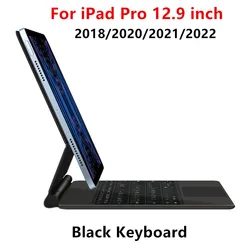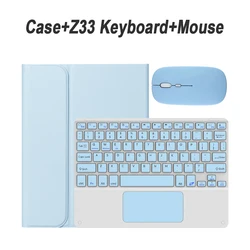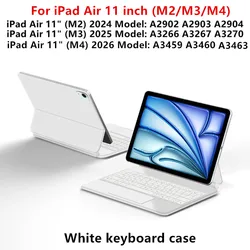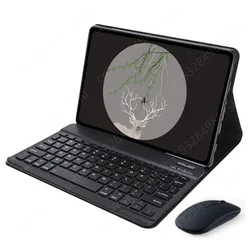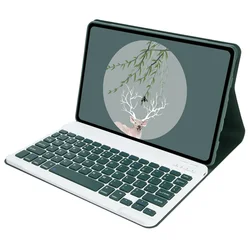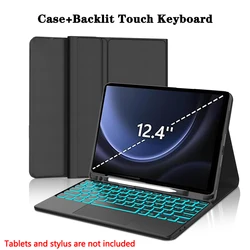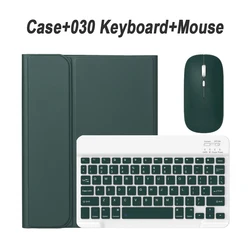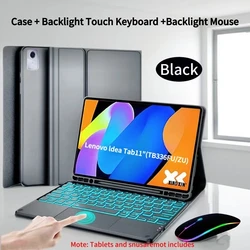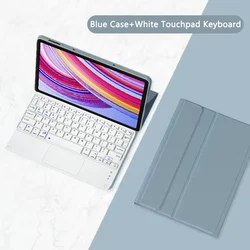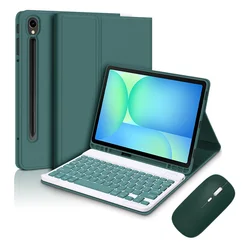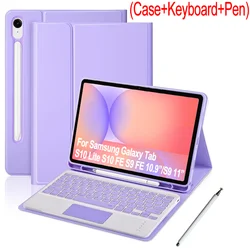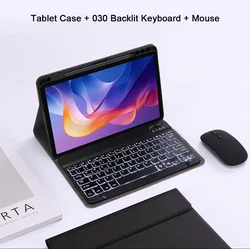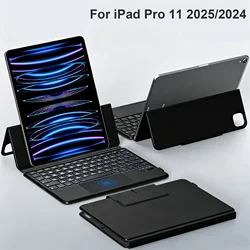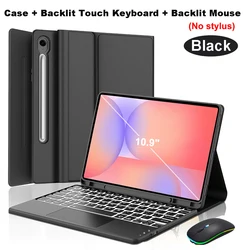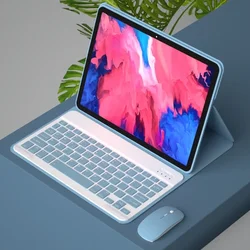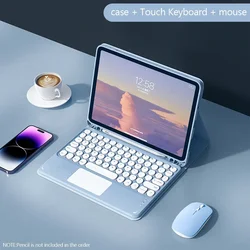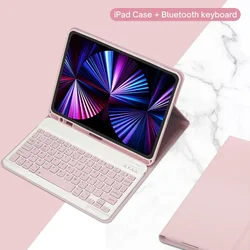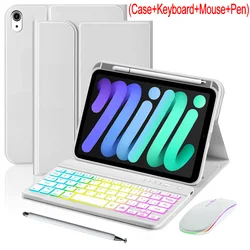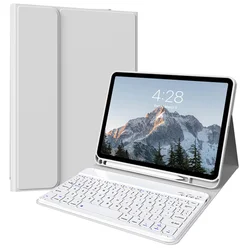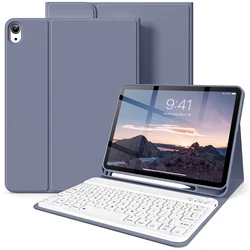
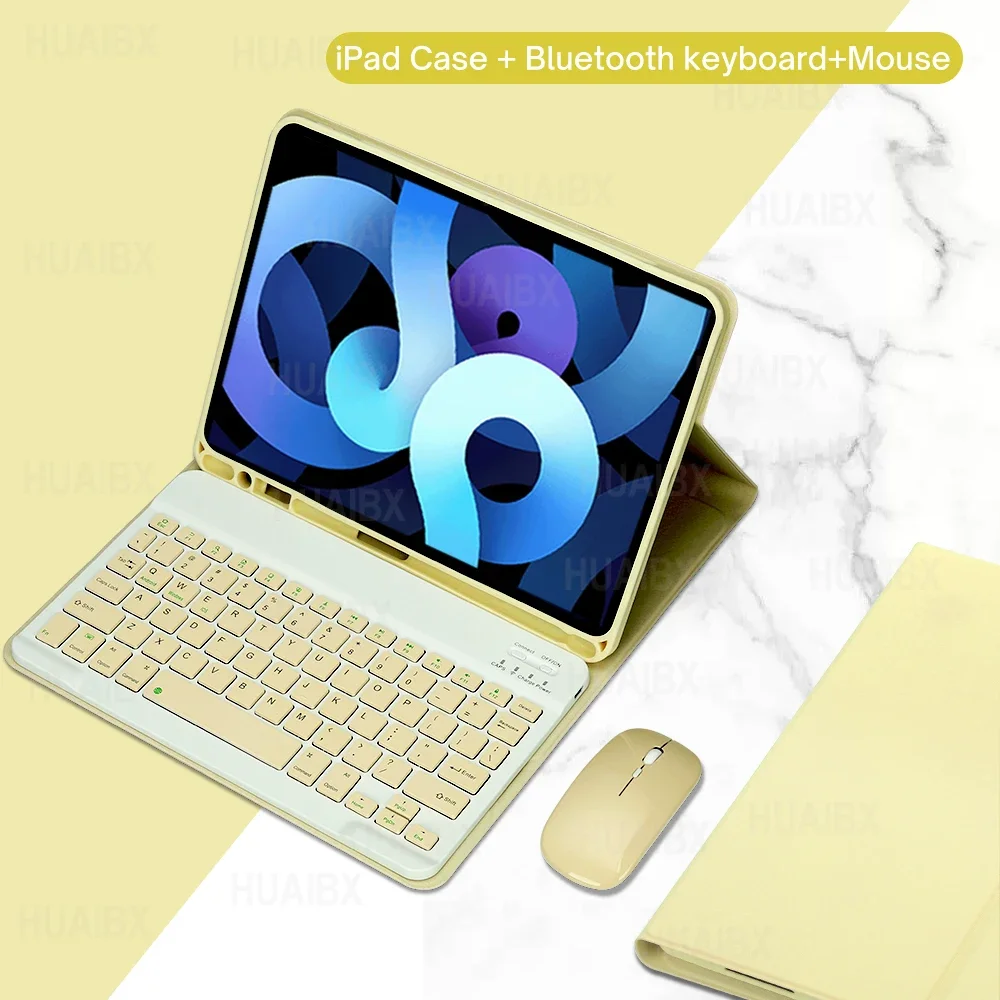







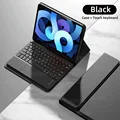
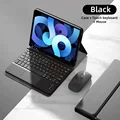




















Introducing the Ultimate Keyboard Case for iPad Air 5th and 4th Generations
🎯 This meticulously designed keyboard case is tailored specifically for the iPad Air 5th Generation (10.9 inch, 2022) and the iPad Air 4th Generation (10.9 inch, 2020), ensuring a perfect fit and a seamless user experience. Please make sure to verify your iPad model before making your purchase to guarantee compatibility.
Device Compatibility:
For iPad Air 4 (2020): Model numbers A2072, A2316, A2324, A2325.
For iPad Air 5 (2022): Model numbers A2588, A2589, A2591.
Keyboard Options:
⚡ You have the choice between two keyboard styles. The English keyboard features only English letters, while the Multilingual version keyboard combines English letters with additional engraved language characters for those who require multilingual support.
Digital Device Requirements:
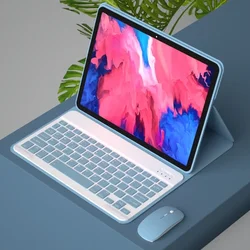
📎 Please note that the iPad and stylus are not included with the case, and images of the product are for reference purposes only; actual colors may vary based on the product received.
👌 Easy Connectivity:
🔍 Connecting your mouse and keyboard is a breeze with our clear step-by-step process:
🔵 FAQs:
🔘 Q: What should I be aware of when connecting the mouse for the first time?
A: When connecting for the first time, press the left button, right button, and scroll wheel simultaneously for about 3-5 seconds.
🔵 Q: Is the scrolling direction for the mouse the same when using USB versus Bluetooth?
A: No, they differ. Using USB, the scroll wheel moves in the same direction as a computer mouse, while Bluetooth scrolls in the opposite direction.
Q: How can I switch between different operating systems?
A: Use the following shortcuts: Fn+Q for Android, Fn+W for Windows, and Fn+E for iOS. Be sure to switch before connecting your tablet.
🔘 Q: My Bluetooth keyboard letters appear scrambled. What can I do?
A: Verify the following:
Q: How can I configure the input method for different language keyboards?
🧰 A: Taking a Samsung tablet as an example, navigate to "Settings" > "System" > "Language & input" and select "Add New Keyboard." For other devices, refer to relevant system settings for similar configurations.
🧰 Q: How do I change the scroll wheel's direction on my device?
A: Once your mouse is connected, go to "General" > "Trackpad & Mouse" settings and disable "Natural Scrolling" for a traditional scrolling experience.
🧩 Upgrade your iPad experience with this top-notch keyboard case that combines functionality, style, and convenience into one complete package.
Om den här artikeln anländer efter leveransdatumet som anges i kassan kommer du att få ett e-postmeddelande med en kreditkupong på €6,00 som du kan använda vid din nästa beställning