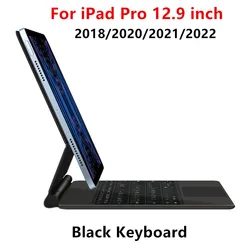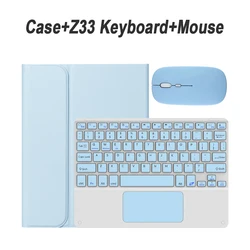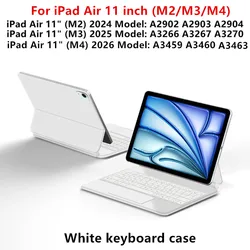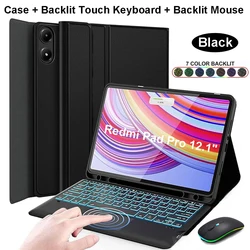
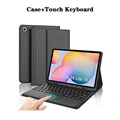
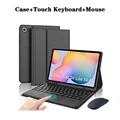
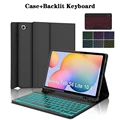
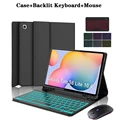
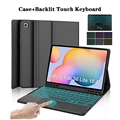
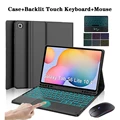
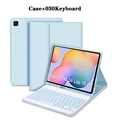
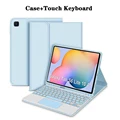
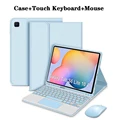
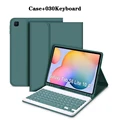
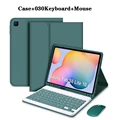
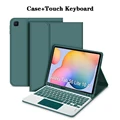
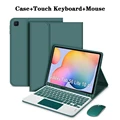
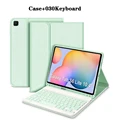
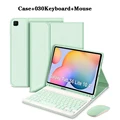
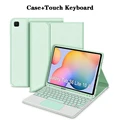
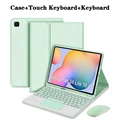
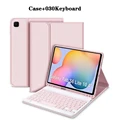
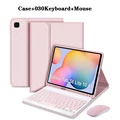
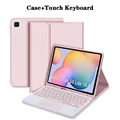
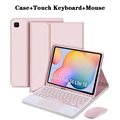
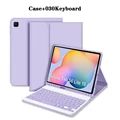
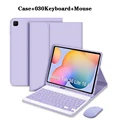
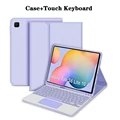
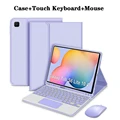
Product Overview:
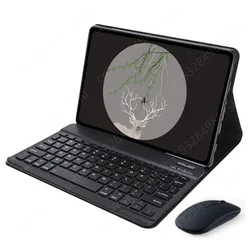
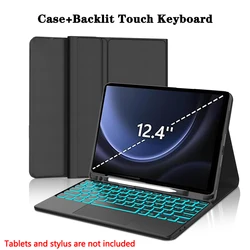
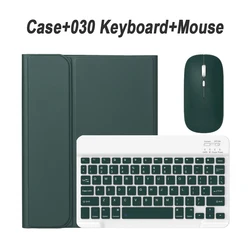
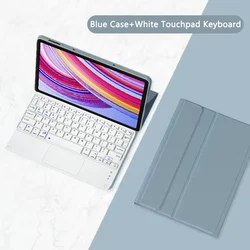
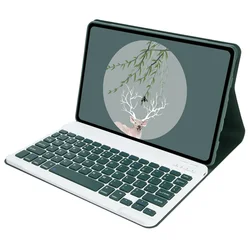
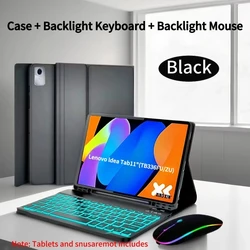
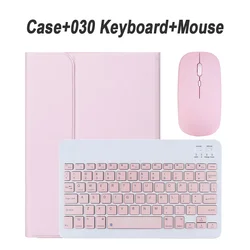
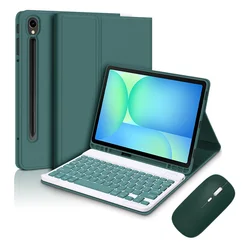
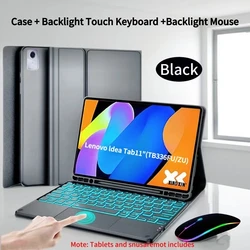
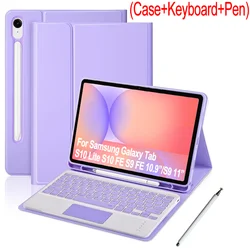
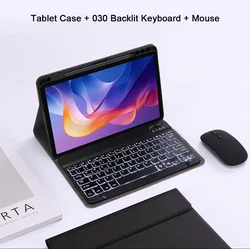
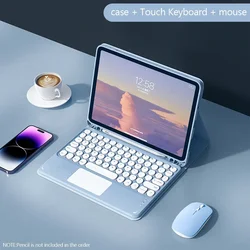
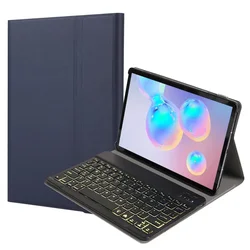
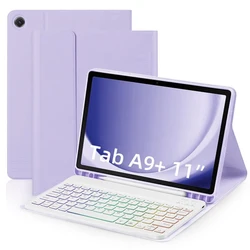
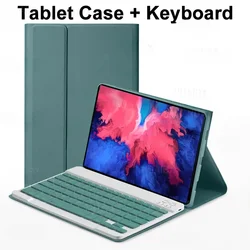
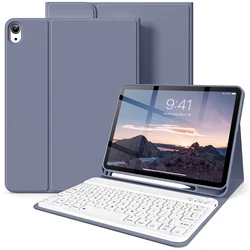
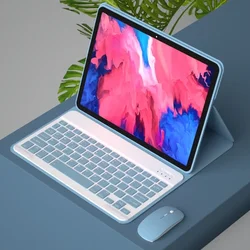
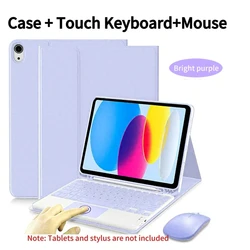
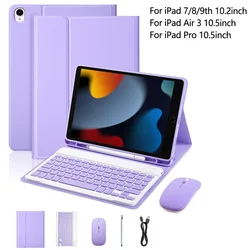
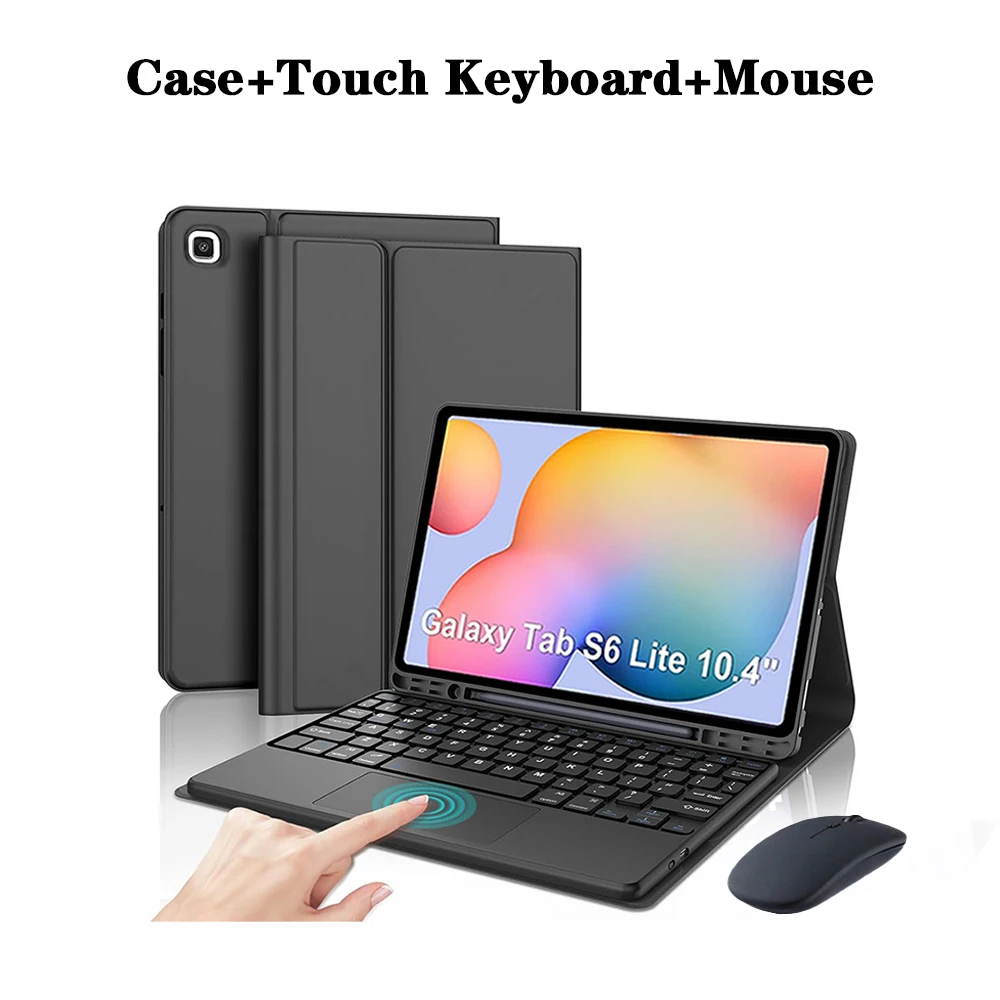
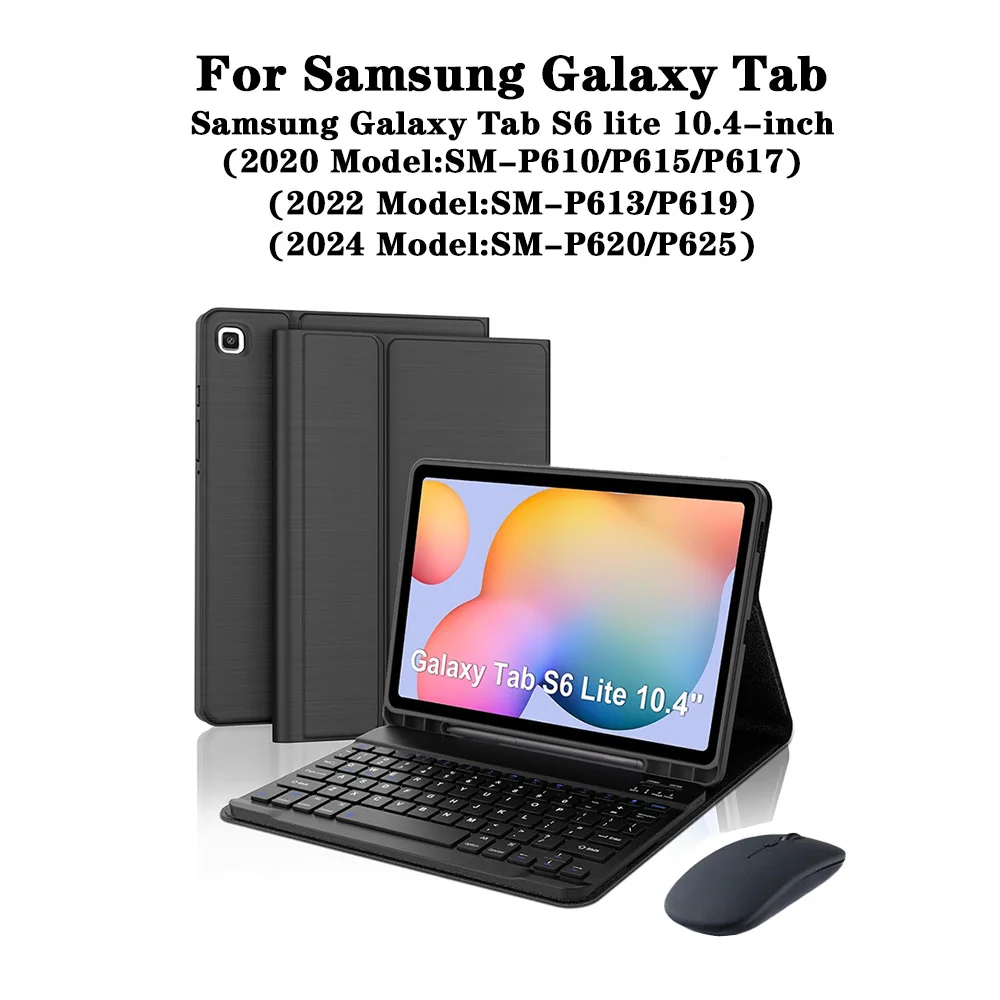
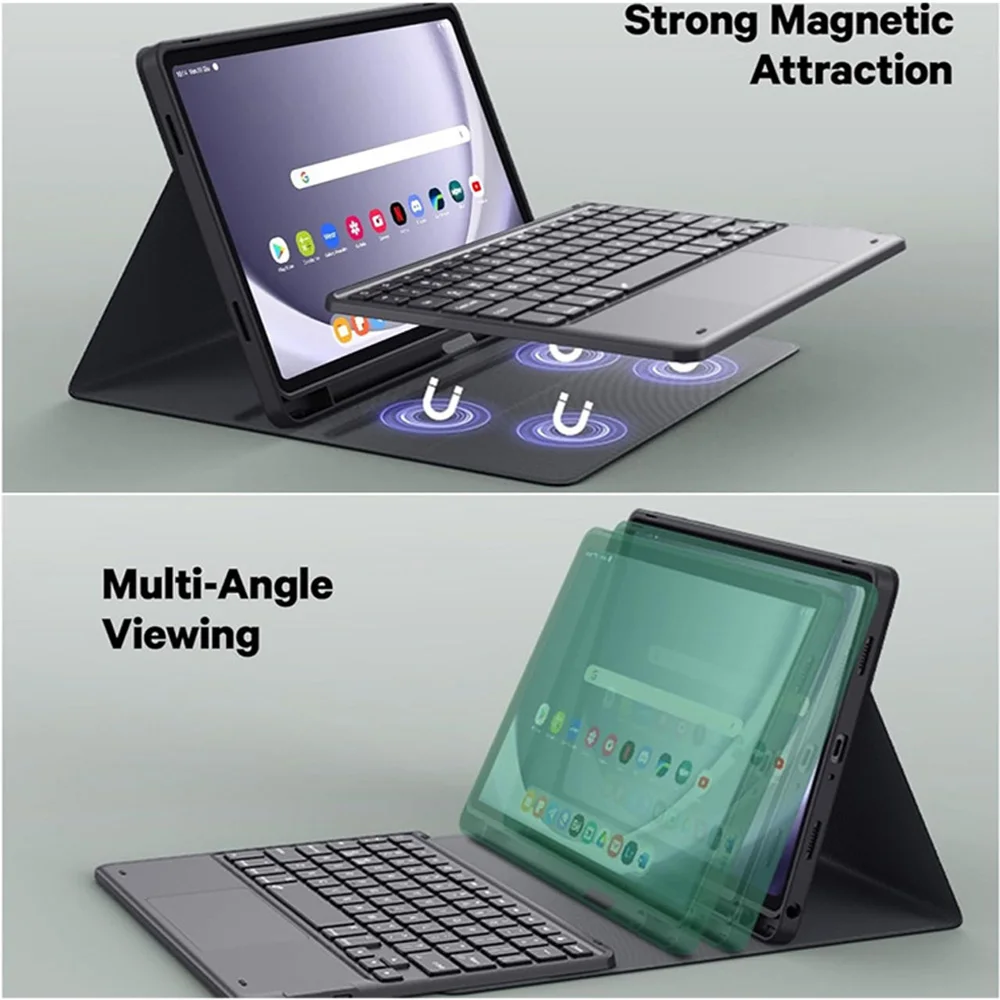
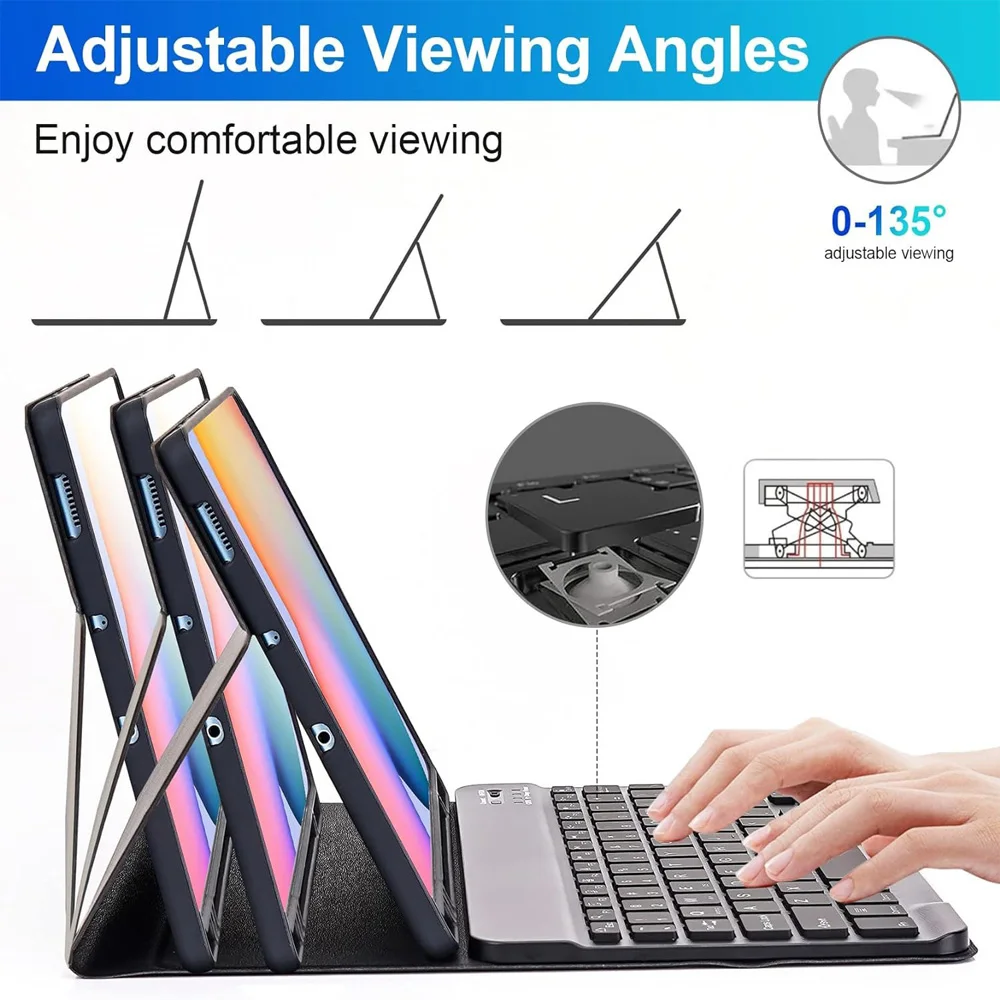
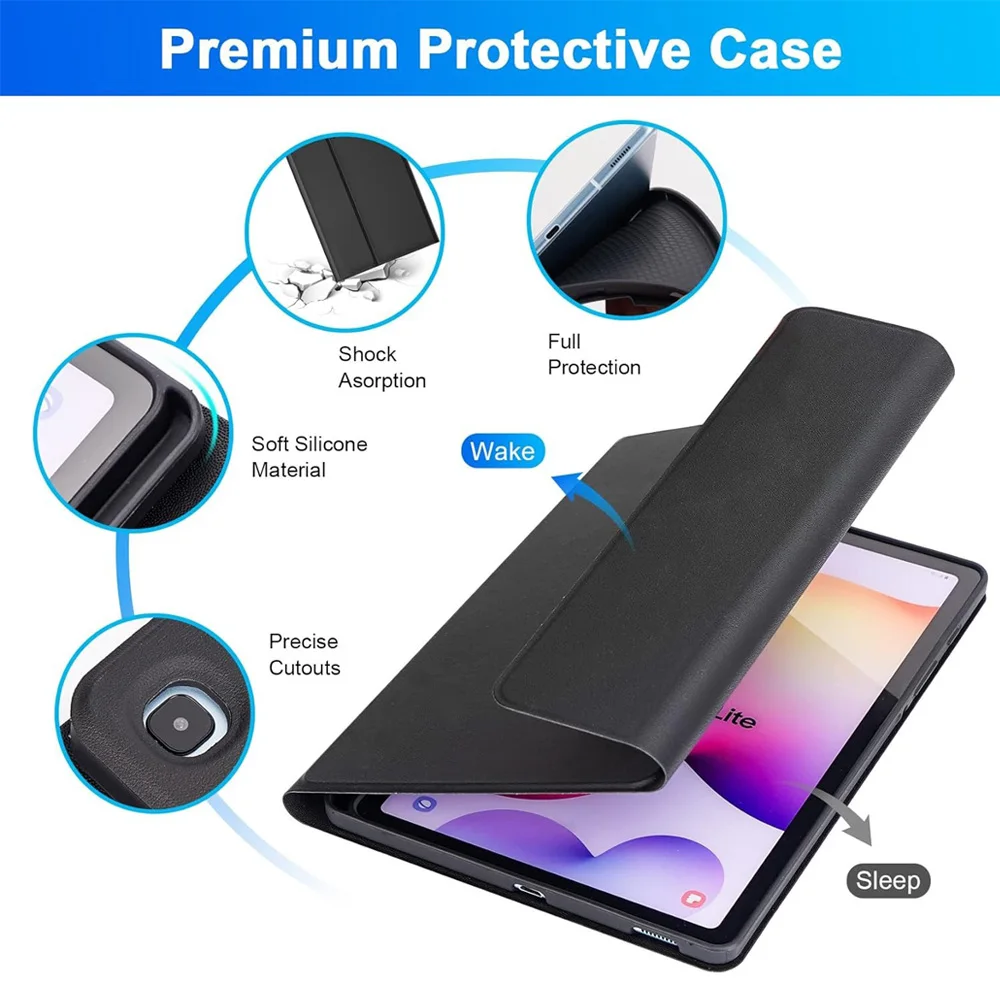
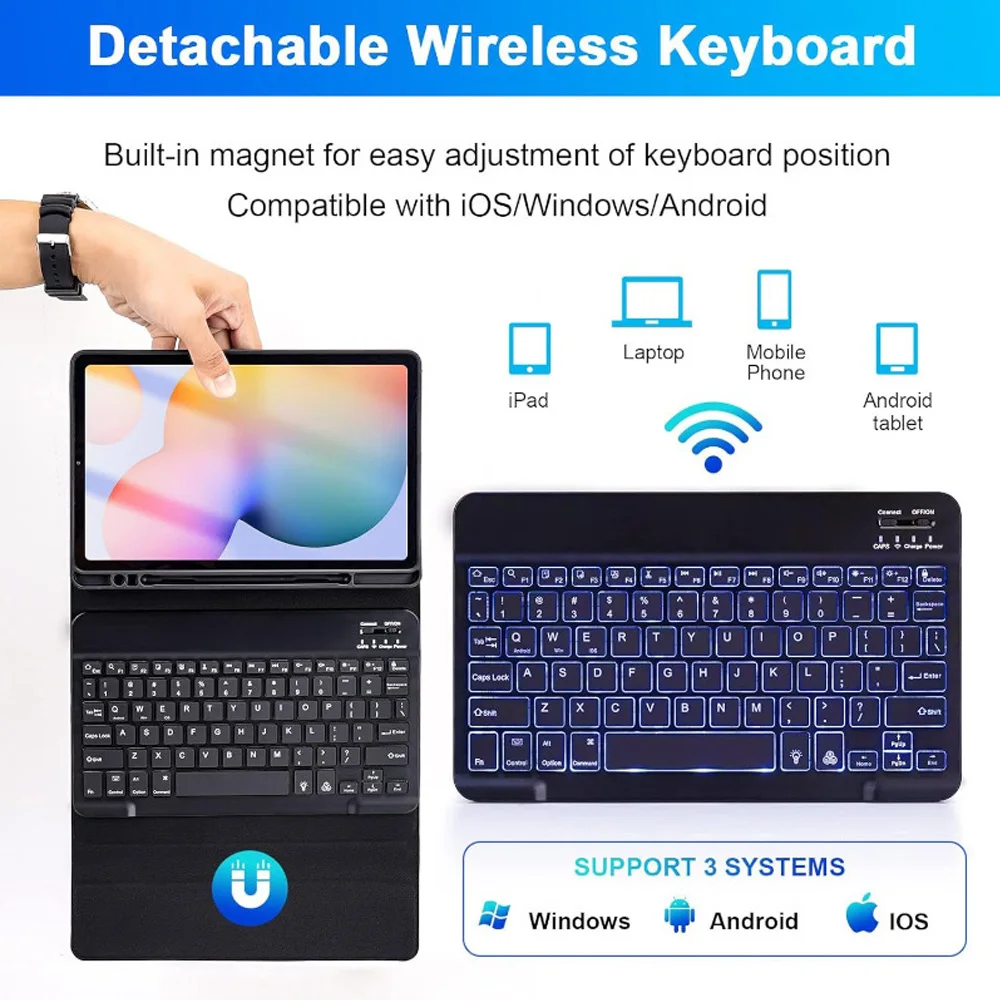
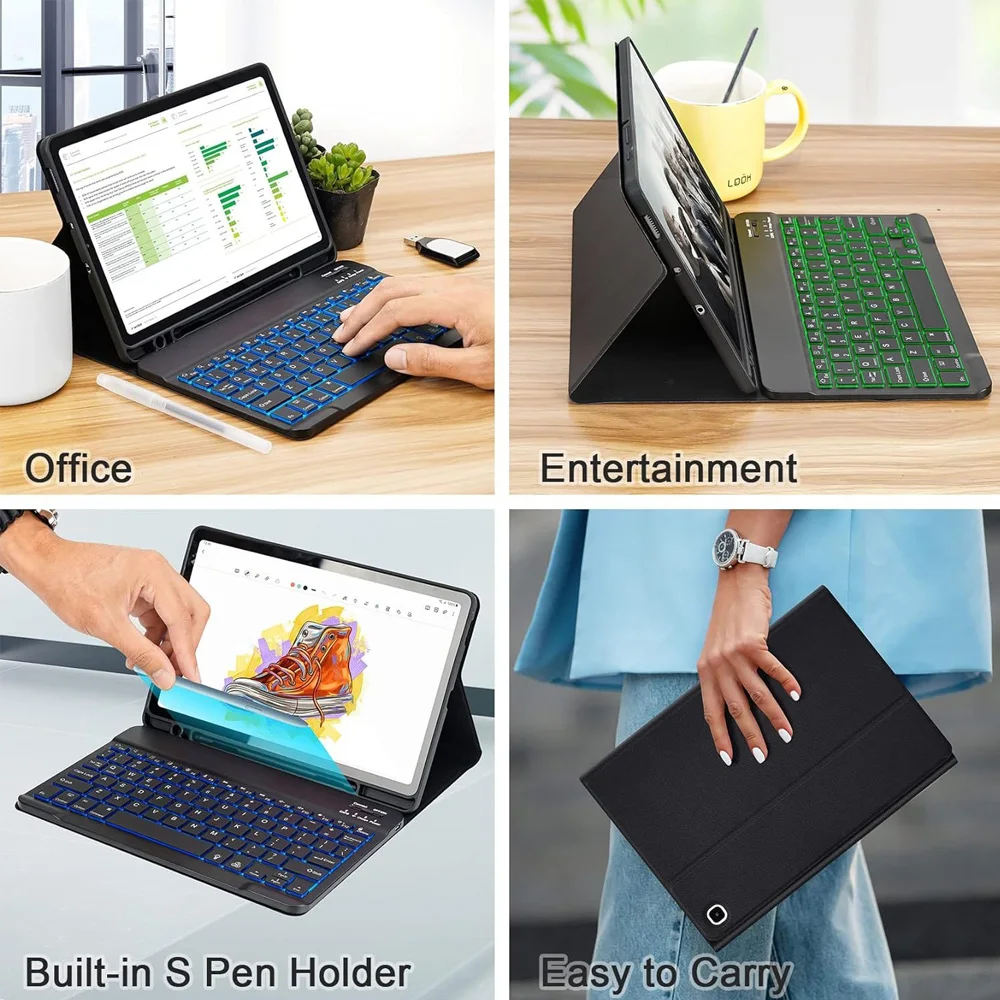
✨ Introducing the stylish and functional Tablet Case designed specifically for the Samsung Galaxy Tab S6 Lite (10.4 inches). This versatile keyboard cover not only serves as a protective case but also features a convenient pencil holder, making it the perfect accessory for both work and play.
Compatibility:
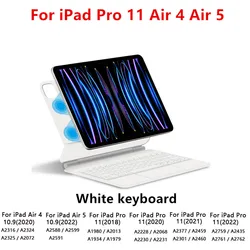
This tablet case is exclusively compatible with the Samsung Galaxy Tab S6 Lite 10.4-inch models:
🧰 To ensure that you select the appropriate case for your device, please verify the model number located at the back of your tablet or by navigating to "Settings," then "About." Here, you will find your model listed.
Note:
📎 The tablet and stylus are not included with the purchase of this case. The description provided serves as a reference; please check the actual product for accurate color representation.
Keyboard and Mouse Connectivity:
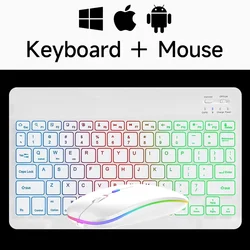
🔵 Enhance your productivity with ease. To connect your Bluetooth keyboard and mouse, follow these simple steps:
🔵 Frequently Asked Questions:
🔘 Q: What should I remember when connecting the mouse for the first time?
A: When you connect the mouse initially, ensure to press the left button, right button, and scroll wheel simultaneously for around 3-5 seconds.
🔵 Q: Do the scroll directions differ between USB and Bluetooth connections?
A: Yes, they do. The USB connection scrolls like a traditional mouse, while Bluetooth may scroll in the opposite direction.
⚡ Q: How can I switch between operating systems?
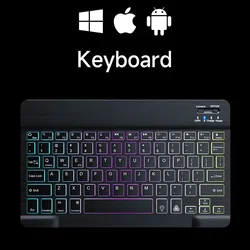
A: Use Fn + Q for Android, Fn + W for Windows, and Fn + E for iOS. It's important to switch systems before connecting your tablet.
🆘 Q: Why are the letters on the Bluetooth keyboard jumbled?
A: Verify the settings based on these prompts:
a. Ensure your device's keyboard language is set to English.
b. If necessary, disconnect and ignore the keyboard in Bluetooth settings, then reconnect using the appropriate system key.
c. For additional assistance, press the L, S, Z keys together to reset the keyboard.
🧰 Q: How do I configure the input method for different language keyboards?
A: On your Samsung tablet, navigate to "Settings," then "System," followed by "Language & Input" to add a new keyboard. For other systems, refer to the relevant system settings.
🧰 Q: How can I adjust the mouse scroll direction on my device?
A: Once your mouse is connected, go to "General," then "Trackpad & Mouse" in your settings, and disable "Natural Scrolling" to change the scroll wheel’s sliding direction.
Om den här artikeln anländer efter leveransdatumet som anges i kassan kommer du att få ett e-postmeddelande med en kreditkupong på €6,00 som du kan använda vid din nästa beställning